
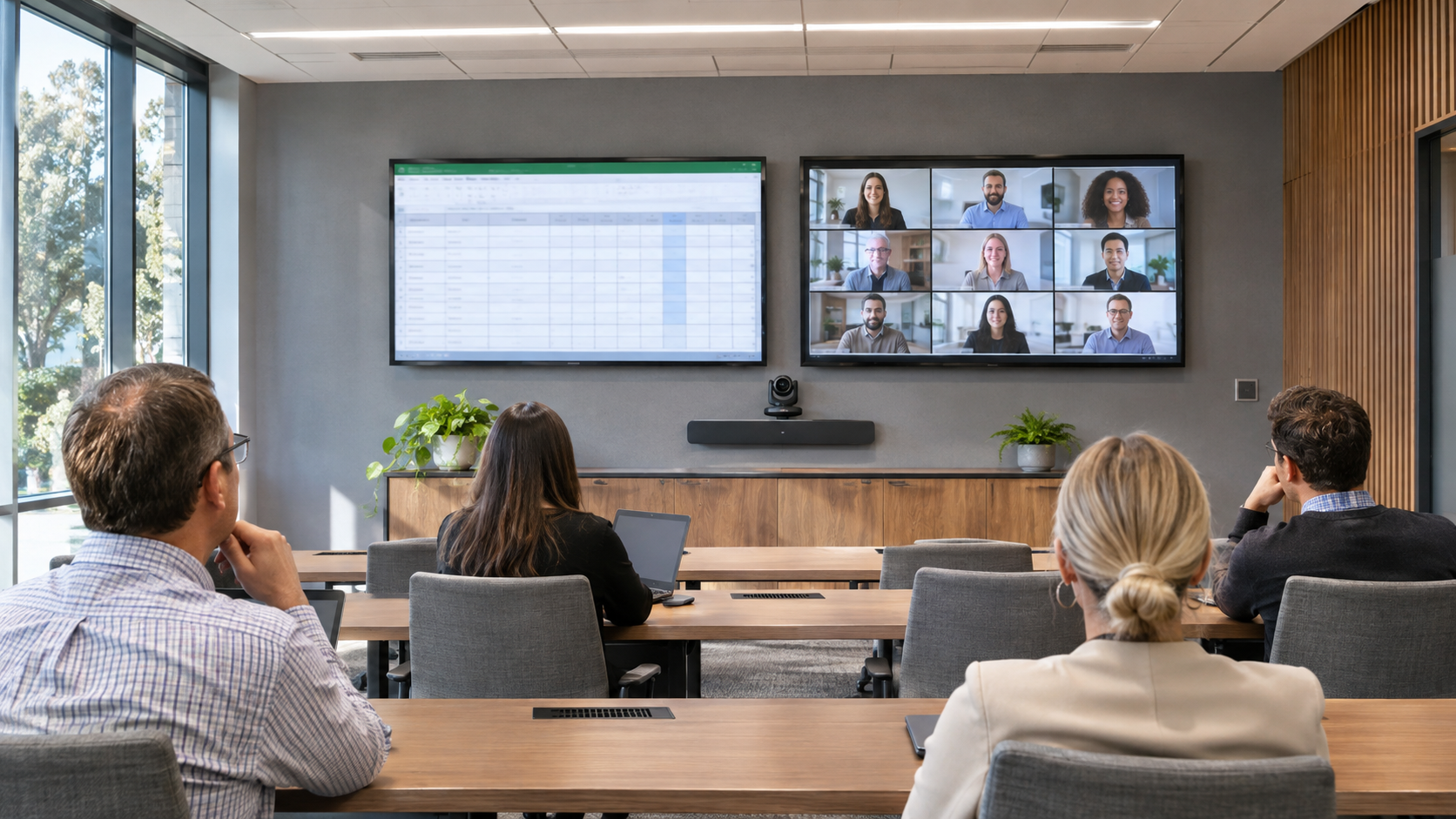
The display looked large enough when it was installed. Then someone shared a spreadsheet during a hybrid meeting, and the people at the back of the table started opening the file on their own laptops.
If Teams Rooms shared content is too small, measure the part of the screen carrying the document before ordering a larger display. Meeting layouts can reserve space for participants, chat, and other elements. The content people need to read may occupy much less area than the physical screen suggests.
Keep the document constant
Choose a real file that reflects the room’s work: a budget, a drawing, a course diagram, or a project schedule. Remove confidential information. Identify the detail someone must read or compare to participate in the discussion.
Use the same file, application zoom, and sharing method for every test. Otherwise a change in document scaling can make one layout look better without showing whether the room itself has improved. Include a second, simpler presentation so the team can see how requirements differ by task.
Compare the layouts the room actually supports
Microsoft’s meeting-room guidance describes Front Row and other display arrangements and emphasizes the readability of the in-meeting content area. Front Row places remote participants and meeting context around shared material. That can help people engage with colleagues, but the document still needs enough usable space.
Compare the supported layouts on your installed system. Record the active content width and height, the display configuration, and the seat used for observation. Test a normal meeting with remote participants present. An empty meeting may not show the layout everyone sees during the real discussion.
Walk to the difficult seats
Sit at the far end and at the side of the table. Look around raised laptop lids and check whether the presenter blocks part of the image. Keep the lighting people need for notes and face-to-face conversation.
Ask observers to perform the actual task. “Can you read the number in that cell?” is more useful than “Does the screen look good?” If the answer changes when the blinds close or a person moves, record the condition. The room must support the agreed task under acceptable working conditions.
AVIXA’s display-size guidance connects image size and viewing requirements. VIcom’s display-sizing article explains why more resolution alone does not make small details larger.
Choose the correction that fits the failure
A layout adjustment may recover enough content area. A clearer document or different zoom level may help when the audience needs a small set of values rather than the entire worksheet. Those changes deserve a test before a purchase, but they should not become a permanent workaround for a room that cannot support its normal work.
A second display can separate participants from content in an appropriate configuration. It does not automatically enlarge content if the same crowded layout is duplicated. Moving a display, changing seating, or choosing a larger active image may be necessary when viewing distance is the limiting factor.
Put the demonstration result in the specification
Record the file, layout, active image dimensions, lighting, viewing positions, and pass/fail observations. Ask the supplier to demonstrate the proposed arrangement with those same inputs. Keep participant visibility and document readability as separate requirements so improving one does not quietly compromise the other.
For a classroom comparison, see projector versus flat panel testing. For a meeting room, bring your difficult document and seating plan to VIcom. A useful display recommendation starts with what the people in the room need to see.
Connect with VIcom by filling out the form below.