
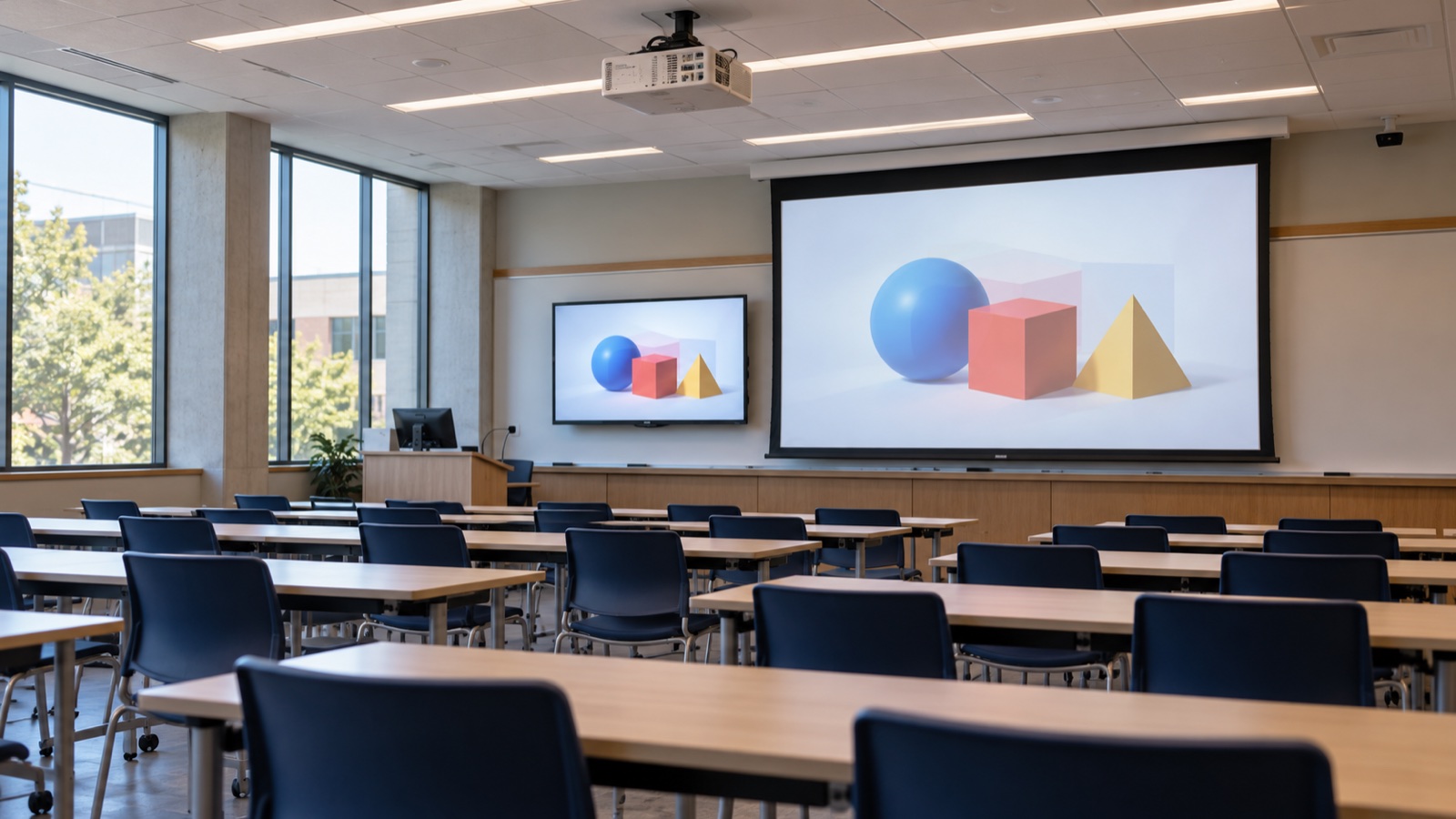
A flat panel can look excellent from the front of a classroom and still leave the back row squinting at a spreadsheet. A projector can deliver a larger image while losing the fine detail students need when daylight reaches the screen. Both problems are easy to miss during a product demonstration.
A useful classroom projector vs flat panel comparison starts with the material faculty teach, the seats students occupy and the light people need to work. Before replacing the existing projector with a TV or interactive display, ask each candidate to pass the same room test. Include the option of improving the current installation.
Bring three teaching samples to the comparison
Ask instructors for a dense worksheet, a diagram and a typical presentation. Use materials they already teach from, with student information removed. A colorful promotional video gives you little evidence about whether a student can distinguish a decimal point or follow a labeled process diagram.
For each sample, write down the task. Students may need to compare two values in a table, identify a small label or read a worked example while copying notes. Specify the smallest detail that matters. Keep the source file, application scaling and presentation mode consistent between demonstrations.
Let a faculty member run the material from the normal teaching position. Include a document camera or live annotation if those tools are part of the course. An interactive display deserves credit for an interaction instructors will use, provided that the resulting content remains readable to everyone who needs it.
Map the seats and active image area
Mark the farthest occupied seat and the seats at the sides. Check sightlines around columns, furniture, raised laptop lids and the instructor. Record the usable wall area, mounting height and actual image width and height. The diagonal printed on a display carton tells only part of the story.
A smaller replacement can reduce the size of every displayed element even when its resolution is higher. Compare the active teaching image after the application toolbar, video tiles or other persistent interface elements take up their space. Test the layouts faculty expect to use during class.
VIcom’s classroom display-sizing guide provides background for the viewing-distance discussion. AVIXA’s Display Image Size standard summary describes sizing and viewing positions based on user need. Use that framework with an AV designer, then verify the proposed image in the room.
Keep the lights people need
Demonstrate each option with the lighting needed for writing, discussion and instructor visibility. Repeat the check when daylight is a meaningful factor. Record the time, blind position and lighting settings so another person can reproduce the conditions.
Look for washed-out portions of a projected image and reflections on a flat panel. Sit in the side seats as well as the center. A room may need a lighting adjustment, different placement or another design choice before either display performs acceptably.
Advertised component contrast and installed system contrast describe different conditions. The AVIXA Image System Contrast Ratio summary includes the source, signal distribution, display and environment, and calls for measurement in the system’s typical use case. That is a useful basis for asking how the proposed room will be evaluated. A public summary does not replace the full standard or a project-specific design.
Compare the work each option brings
For projection, review throw distance, beam obstructions, instructor shadows where relevant, screen condition and access for service. Have the designer check whether the current screen and mounting arrangement suit the proposed projector. Reusing hardware can save installation work, but compatibility needs confirmation.
For a flat panel, review wall structure, mount selection, display weight, cable paths and safe service access with the appropriate installers. Check reach and teaching posture if people will touch the screen. A display placed high enough for the back row may be awkward for frequent annotation.
Compare operating costs over the institution’s expected ownership period. Ask for the assumptions behind power, maintenance, licensing, training and support estimates. Check what staff can repair locally, what requires a service visit and how a failed unit would affect classes. Universal size, brightness and price cutoffs cannot account for these room differences.
Keep an improvement proposal beside the replacement proposals. Depending on the findings, it may involve screen repair, light control, content changes or correction of a signal problem. Ask the team to show which teaching requirement each change would satisfy and which limitations would remain.
A classroom display comparison worksheet
Copy this worksheet for each candidate, including the existing system. Fill in observations from the same seats using the same files. Leave a requirement unresolved when the demonstration cannot answer it.
| Record | What to capture |
|---|---|
| Room and conditions | Room identifier, date, time, daylight, blinds, lighting and occupied seating area. |
| Required image | Active width and height, mounting position, farthest seat and side-seat sightlines. |
| Teaching tasks | Worksheet detail, diagram labels, presentation text and any live annotation task. |
| Candidate | Existing system, improved existing system, proposed projector or proposed flat panel; record the exact configuration. |
| Observed result | For each sample and seat: readable, unreadable or unresolved, with the reason and observer. |
| Tradeoffs | Glare, shadows, interaction, installation, service access and ownership-cost assumptions. |
| Decision | Required changes, remaining compromises, retest date and named approver. |
In a hypothetical comparison, a flat panel might pass presentation slides but fail the worksheet from the last row. The larger projected image might preserve the worksheet detail while requiring a lighting change. Record those findings separately. Neither candidate earns approval until it meets the agreed teaching requirements under acceptable room conditions.
Give procurement a demonstration request it can use
Send suppliers the seating plan, teaching samples and intended lighting conditions before the demo. Identify the people who will judge readability and teaching use. Require disclosure of any substitution, such as a different screen surface or a demonstration room with less daylight.
Keep photos and notes tied to the candidate configuration, but make the purchase decision from direct observation and any agreed measurements. Camera exposure can change how a display looks in a photograph. A picture of a bright screen cannot establish that students read the required detail.
Bring your completed worksheet, seating plan and teaching files to a VIcom AV consultation. The team can discuss the display and room conditions together, with a clear list of what the demonstration must prove before procurement proceeds.
Connect with VIcom by filling out the form below.