
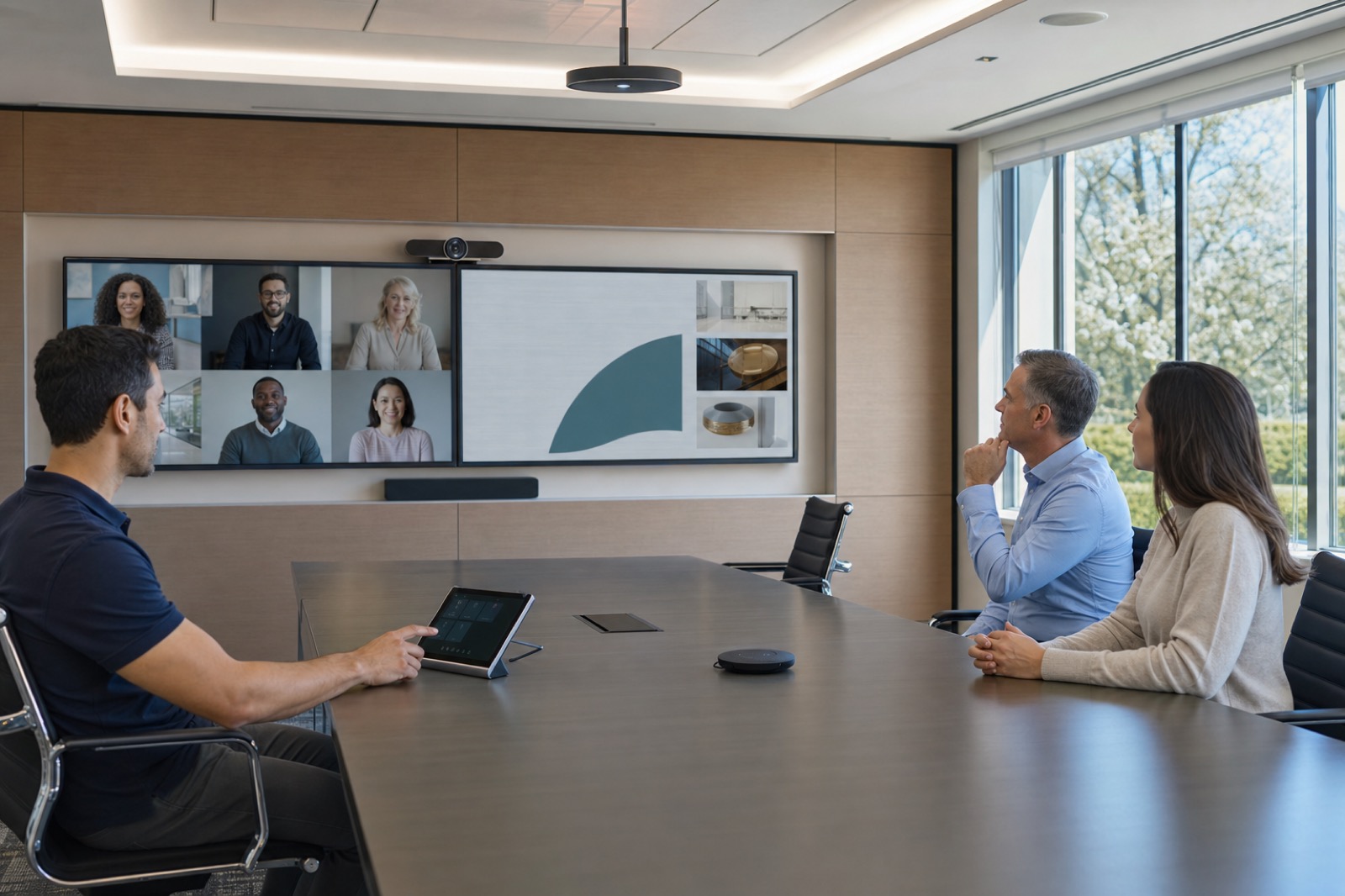
How to Test Meeting Room Interoperability Across Teams, Zoom, and Webex
A working Join button proves very little.
The real test begins after the room enters the meeting. Users must know whether remote guests can hear them, which camera is active, how to share content, and how to recover when something fails.
These needs grow more important as companies support Microsoft Teams, Zoom, Webex, and other meeting services across the same offices. Meeting room interoperability should give users a reliable experience for the calls they conduct most often.
Microsoft’s current Teams Rooms planning guidance states that Teams Rooms Basic can join Zoom and Webex meetings through Direct Guest Join. The same guidance asks organizations to plan room types, peripherals, operations, monitoring, updates, and help-desk ownership.
Direct Guest Join helps users enter meetings on other platforms. Available features and controls may differ from a native Teams meeting.
Identify the Meeting Paths That Matter
Begin with calendar data, support tickets, room data, and feedback from employees and executive assistants.
Choose five to ten meeting paths that represent most business needs or carry the greatest risk if they fail.
Common paths include:
- An employee hosts a native meeting with coworkers.
- An employee joins a customer’s meeting on the room’s native platform.
- An employee joins another platform through a guest experience.
- A visitor uses a laptop with the room camera, microphones, speakers, and displays.
- A leadership meeting uses captions, recording, or controlled admission.
- A large room connects with a partner through SIP or a managed interoperability service.
For each path, record:
- Meeting host
- Room user
- Remote participant
- Platform
- Meeting sensitivity
- Required results
“Join Zoom” leaves too many questions unanswered.
A clear requirement might state that a Teams-native room must join a customer’s Zoom meeting, share content from a wired laptop, use the room camera and microphones, and recover from a failed share without restarting.
Know Which Connection Method You Are Testing
Each interoperability method creates a different experience and support process.
Native Room Meeting
The room joins the platform it was designed and configured to use. This approach usually provides the closest connection with the room calendar, controls, policies, monitoring tools, and meeting features.
Use the native experience as the baseline when testing other meeting paths.
Direct or Browser-Based Guest Join
The room joins another platform through a supported guest process.
This approach can simplify common external calls. Identity, layouts, captions, recording, whiteboards, content sharing, and meeting controls may work differently from the native platform.
Platform updates may also change the experience after deployment.
BYOD or BYOM
The user’s laptop runs the meeting. The room provides the camera, microphones, speakers, and displays.
This method can support more meeting platforms, but it depends on:
- USB connections
- Cable reach
- Device selection
- Drivers
- Laptop charging
- Security policies
- Clear instructions
- A reliable return to the room’s normal mode
Test each part of the laptop connection instead of treating BYOD or BYOM as one feature.
SIP, H.323, or Managed Interoperability
Standards-based endpoints and managed bridge services still support some boardrooms, partner networks, public-sector environments, and large installed systems.
These methods can solve specific connection needs. They may also add requirements for licensing, dialing, identity, security, and support escalation.
Document each dependency before deployment.
Build an Acceptance Matrix
Test each meeting path in a room that represents the planned room type. Use real accounts, invitations, tenant policies, networks, and peripherals.
A vendor demonstration on an open network cannot prove how the system will perform in the company’s environment.
Score each meeting path across the same areas.
Invitation and Calendar
- Does the room read the invitation correctly?
- Can users find the join control?
- What happens with forwarded invitations?
- What happens with invitations from another tenant?
Admission and Identity
- Can the room pass through the lobby?
- How does the meeting identify the room?
- Can users tell who controls admission?
Audio
- Can remote participants hear people at every seat?
- Does echo cancellation work?
- Does the room provide consistent speaker volume?
- Can users understand the mute state?
Video
- Can users choose the correct camera?
- Do camera presets work?
- Does automatic framing work as expected?
- Can users understand the camera’s privacy state?
Content Sharing
- Does wired sharing work?
- Does wireless sharing work?
- Can the system show motion content?
- How does it handle protected content?
- Does the room return to the people view correctly?
Displays
- Do single-display layouts work?
- Do dual-display layouts work?
- Where do participants, content, chat, and captions appear?
Collaboration Features
Where policy allows, test:
- Whiteboards
- Reactions
- Captions
- Transcription
- Recording
Recovery
Test common failures:
- Disconnect and reconnect a laptop.
- End and rejoin a meeting.
- Move between meeting methods.
- Stop and restart content sharing.
- Change the selected camera or microphone.
The room should return to a known state after each test.
Support
- Does the monitoring system record the event?
- Does the support request reach the correct queue?
- Can support staff see enough information to diagnose the problem?
- Does the escalation path lead to the correct team?
Rate each test as:
- Pass
- Pass with a limitation
- Fail
For each limitation, explain its effect on the user and provide an approved workaround. A process that requires an expert during every meeting will not work as a standard user experience.
Test the Whole System Together
A meeting failure may appear to come from the platform while another part of the system caused it.
For example:
- USB extensions may affect camera or microphone stability.
- A firewall or proxy may block a guest service.
- A resource account may change calendar behavior.
- A missing license may disable a feature.
- An identity policy may block an external meeting.
- A display setting may send content to the wrong screen.
Test the room, network, account, policy, software, and license as one system.
Microsoft recommends recording each room’s size, layout, purpose, acoustics, features, and peripherals. Apply the same care to cross-platform meeting support.
For each approved room standard, document:
- Supported peripherals
- USB signal path
- Display configuration
- Network segment
- Resource account
- Licenses
- Software versions
- Policy exceptions
- Supported meeting paths
Plan for Updates
A room that passes today may behave differently after an update to a meeting platform, browser engine, device firmware, or identity policy.
Assign responsibility for:
- Reviewing release notes
- Testing important changes
- Approving updates
- Deploying updates
- Recording known problems
- Informing users
Test major changes in a prototype room before applying them across the company.
The support plan should also answer:
- Which team owns room health?
- Which team owns meeting-platform policies?
- Which queue receives the first support request?
- What information should the user provide?
- When should the issue move to networking, identity, AV, the platform provider, or the integrator?
- Where can users find known limits and workarounds?
Reliable interoperability depends on room design, platform settings, network policies, user instructions, and support. Each part needs a clear owner.
VIcom can help enterprise teams identify their main meeting paths, define room types, test cross-platform meetings, document limits, deploy consistent systems, and support rooms after launch.
The goal is a predictable experience for the meeting paths the organization uses most.
Connect with VIcom by filling out the form below.