
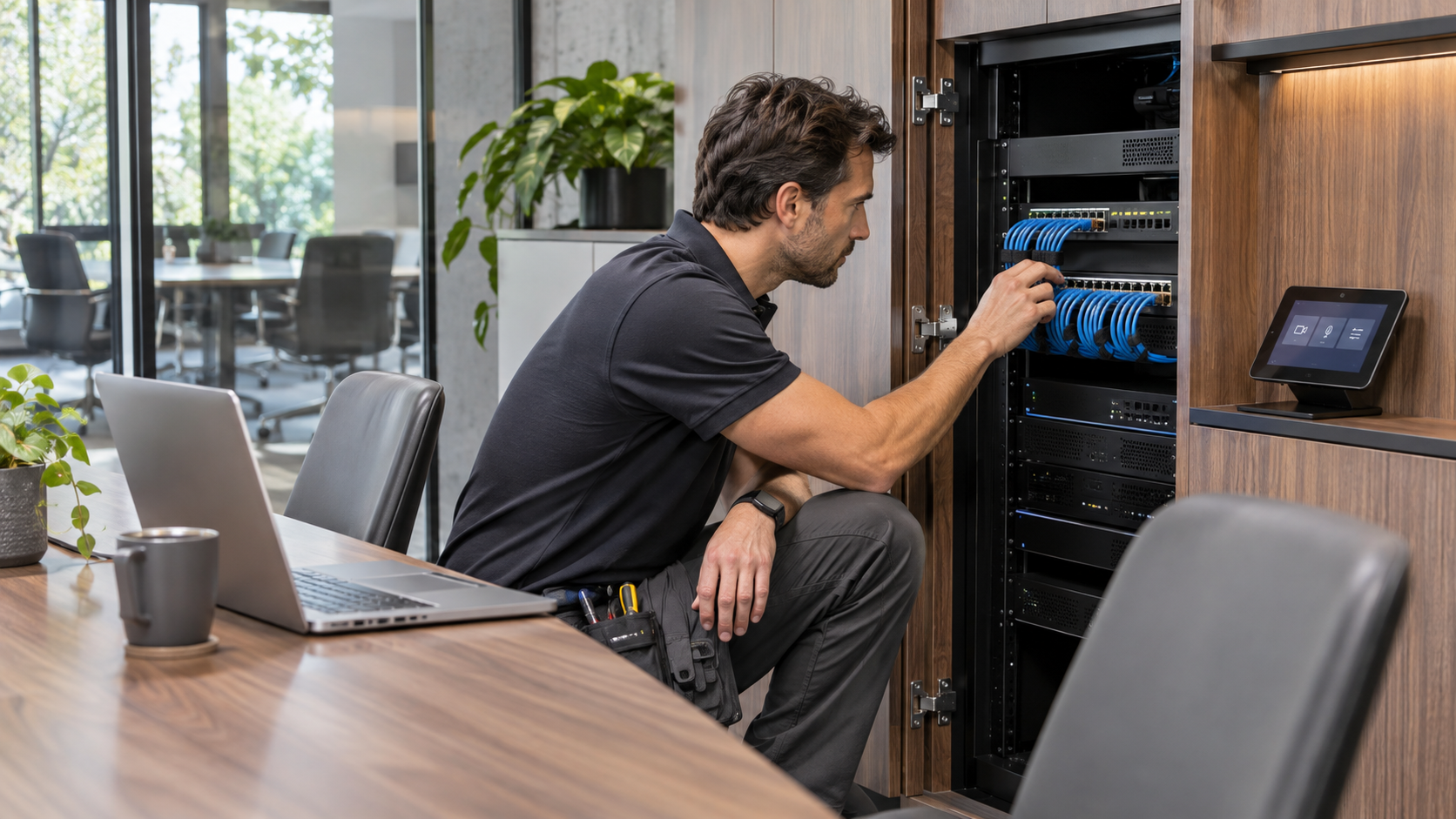
The room worked on Friday. Over the weekend, the network team enabled a new authentication policy. On Monday, the room cannot connect.
That sequence is a reason to investigate network admission before replacing the conferencing hardware. Teams Rooms 802.1X troubleshooting starts by locating the failed step: physical connection, network access, or application sign-in. They can look similar to someone standing at the touch panel.
Establish what changed
Record the room, device model, platform, switch port, and time the failure began. Ask the network team which changes reached that port or device group. Include certificate deployment, enrollment, authentication policies, and switch configuration in the discussion.
Avoid starting with a long list of speculative fixes. If several rooms failed together after the same change, compare their common dependencies. If only one failed, compare it with a working room of the same type. Preserve relevant logs before repeated restarts erase useful context.
Separate network access from Teams sign-in
A room without usable network connectivity cannot resolve an application sign-in problem through account changes alone. Conversely, a device that has network access may still fail because of its room account or application policy.
Have the responsible teams check the physical connection, addressing, authentication result, and required service reachability in sequence. Record evidence at each step. A green link light shows a physical link; it does not prove that the device passed network admission or can reach the services it needs.
Use the Windows procedure for Windows rooms
Microsoft’s 802.1X guidance describes certificate provisioning, wired network profiles, Intune enrollment, and EAP configuration for Teams Rooms on Windows. The network infrastructure and authentication server must also be configured appropriately.
Check whether the intended certificate and profile reached the correct device. Review the actual authentication result with the network administrator instead of assuming that a successful management enrollment proves every policy applied. Device identity, certificate validity, and the configured authentication method need to agree with the approved design.
Microsoft directs customers with Android room devices to manufacturer guidance. Do not copy the Windows process to an Android appliance simply because both run Teams Rooms.
Build a comparison that narrows the fault
Use a working room as a reference only when the configurations are meaningfully comparable. Record differences rather than overwriting the failed room with every setting from its neighbor.
| Compare | Question |
|---|---|
| Platform and enrollment | Are both devices supported and in the intended management group? |
| Certificate and profile | Did the approved credentials and network settings reach each device? |
| Network policy | Are the switch ports and authentication rules supposed to behave the same way? |
| Failure evidence | What do the device and authentication-server logs show at the same time? |
Restore service without losing the security design
Agree on a supported recovery path with the network owner. Any temporary exception needs their approval, an owner, and an end condition. Permanently bypassing authentication leaves the original deployment problem unresolved.
After correction, test the room’s calendar, meeting join, audio, video, and content sharing. Then confirm it still works through the normal restart or maintenance cycle. Record the cause and the configuration change so the next rollout can include a representative room in its pilot.
VIcom’s certificate ownership guide addresses the ongoing renewal process. If connectivity works but the room cannot authenticate to Teams, use the sign-in policy review. Bring the device details and logs to VIcom for a joint AV and network review.
Connect with VIcom by filling out the form below.