
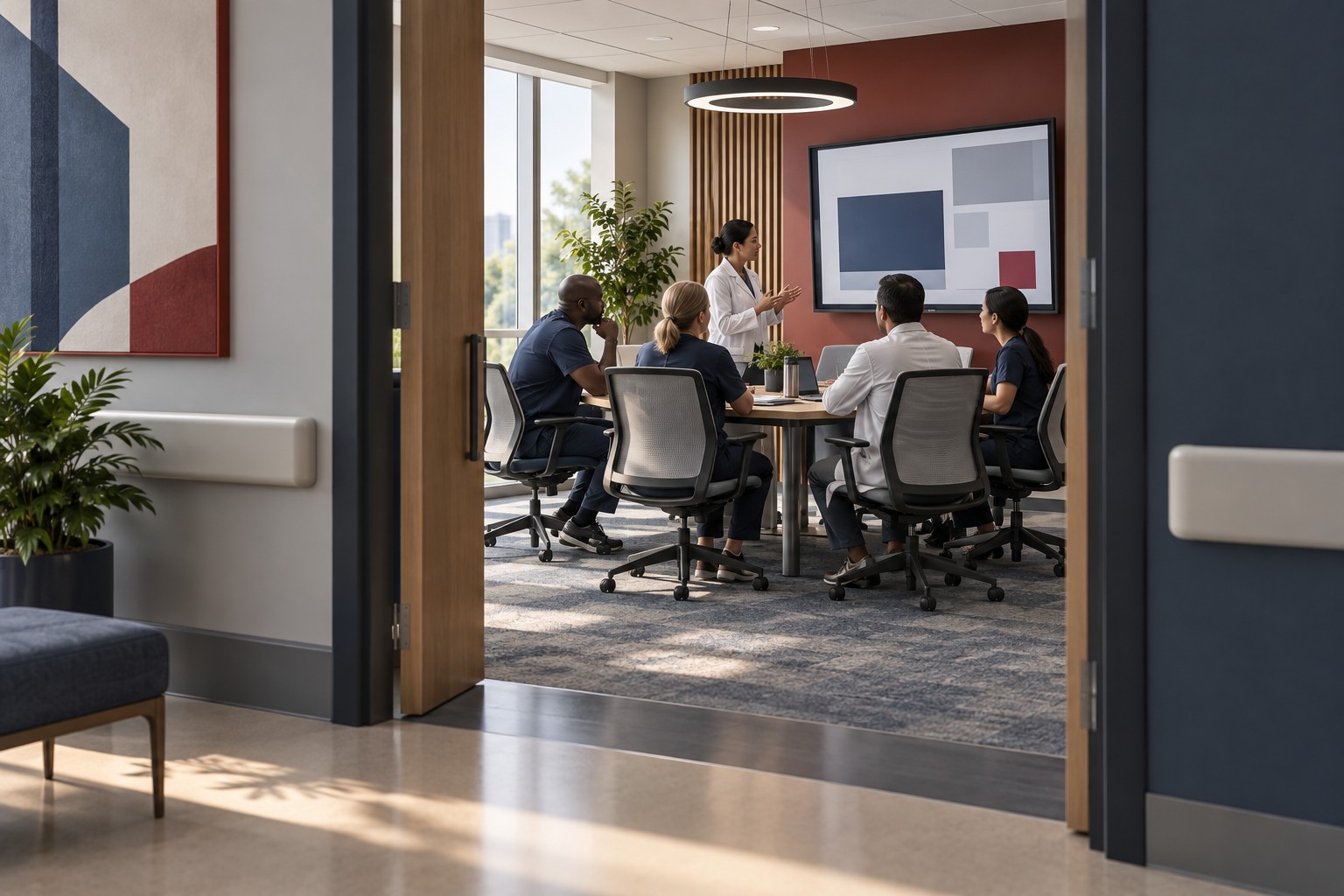
Imagine a hospital unit with a patient worklist on the staff huddle-room screen and general directions on a display in the corridor. During troubleshooting, someone sends the worklist to the corridor screen. The system has sent the picture exactly where it was told to. People outside the care team can now see it.
A shared video system makes it convenient to send content to different screens. It also needs controls that keep staff information off public displays, with labels clear enough for people to choose the right destination.
A privacy review for shared hospital displays should follow the information from its source to the people who can see it. Include the clinical owner, privacy team, IT and AV designer before assigning routes or mounting screens.
Key Takeaways
- Define permitted content and audience for every shared display.
- Check real sightlines from doors, corridors and waiting positions.
- Test source switching, reconnects and restarts with synthetic data.
- Specify a usable neutral state and a clear way to reach it.
Start With the Clinical Task
Ask the team what the display helps them do. Discussing a patient’s care, managing staff assignments and showing visitors where to go are different tasks. Each can require a different source, audience and level of detail.
Record who needs to see the information and under what conditions. A screen in an area described as “staff use” may still face an open doorway or a route used by patients, contractors and visitors. Check who can see the screen from those routes, even if the floor plan labels the room “staff only.”
Have the clinical owner identify the necessary content, and have the privacy team determine the applicable permissions and safeguards. Include whether the display is used continuously or only during a supervised discussion. That distinction affects operating instructions, access and reset behavior.
Build a Source-to-Destination Matrix
List each source beside the screens it may reach. Use the examples below to start the discussion, then have your clinical and privacy teams approve the routes for your hospital.
| Source | Intended Audience | Proposed Destination | Approval or Control to Confirm |
|---|---|---|---|
| Clinical discussion application | Authorized care team | Huddle-room display | Approved content, account access and sightlines |
| Staff operational information | Staff with the relevant duties | Designated staff-area display | Permitted fields and visibility outside the work area |
| General visitor directions | Patients and visitors | Corridor or waiting-area display | Approved public content and publishing owner |
| Presenter’s laptop | Audience approved for that session | Explicitly selected room display | Destination confirmation and controlled sharing |
List prohibited routes as well as allowed ones. A public signage player should not acquire access to clinical sources merely because it shares infrastructure with other displays. Ask IT and the AV designer how the approved restrictions are enforced, and who can change them.
Use meaningful destination labels. “Output 3” gives a clinician little help; “Public corridor display” explains the consequence of a selection. Where appropriate, remove destinations from ordinary user controls rather than relying entirely on a reminder.
Walk the Sightlines
Bring a floor plan to the review, then walk the space. Check the view from the open doorway, the corridor intersection, nearby seating and the position of someone waiting for assistance. Use synthetic content at the intended display size.
Use a sketch like this to mark viewing positions before walking the actual space.
STAFF HUDDLE ROOM                 PUBLIC CORRIDOR
+--------------------------+     Waiting position [C]
| [A] Display              |              |
|     faces staff table    |              |
|       Staff table        |              |
|                          |              |
+------------------ Door [B] ------------+
At A, check whether authorized users can read the required detail. At B, check what becomes visible when the door opens. At C, check the view of someone standing or seated in the public area. Add other viewing positions that exist in the real building.
Possible design changes include relocating or reorienting the display, changing the content presented or adjusting how the room is used. Privacy filters and door procedures need practical evaluation too: they can affect usability or depend on behavior that is difficult to sustain during care.
Give Users a Clear Neutral State
Define what appears when the discussion finishes. Depending on the approved workflow, this may be a neutral screen, a locked application or a designated public-information source. A dark display alone does not tell you whether a session remains active or content will return when it wakes.
Provide an obvious control for ending the display session. Confirm what that action does to screen sharing, the application session and any connected destinations. Explain any separate sign-out step.
Discuss timeouts with clinical staff. A timeout can interrupt a care discussion by clearing the screen too soon. Leaving the session open indefinitely can expose information after the team departs. Test the chosen behavior during the actual task, including a short interruption and a change of operator.
Test Reconnects, Restarts and Screen Sharing
With approved synthetic data, test a source disconnect and reconnect, display wake, application sign-out and an authorized restart. Record whether the screen restores the previous source, shows cached material or returns to the agreed neutral state.
Try changing destinations during a session. Confirm that the operator can identify the selected screen before sharing and can stop sharing without entering an administrator menu. Include any preview thumbnails on control panels in the visibility review.
Have IT examine the source device and receiving system for retained screenshots, downloads or logs where those features exist. Keep the scope specific to the installed products. A display panel, room computer and signage service may retain very different information.
Keep the Privacy Decision With the Right Team
HHS guidance on incidental uses and disclosures explains that HIPAA permits certain incidental disclosures arising from an otherwise permitted use when reasonable safeguards and the minimum necessary standard, where applicable, are in place. It does not require eliminating every possible incidental glimpse. The guidance also describes limits and exceptions, including treatment-related considerations.
Your privacy team still needs to decide who may see the information in each location. Installing an AV product does not make a room HIPAA compliant. Have the privacy and clinical teams approve the content rules, with IT and AV staff responsible for implementing and testing the agreed behavior.
Keep the dated routing table, sightline notes and test results with the system documentation. Require review when a display moves, a doorway changes, a new source is added or a routing permission expands. Name the person who can approve each change before the request arrives.
Related Reading
Where VIcom Fits
Bring VIcom’s healthcare team, your privacy team and clinical owners together for a display-routing review. Start with a floor plan, the proposed sources and the tasks each screen needs to support.
Connect with VIcom by filling out the form below.