
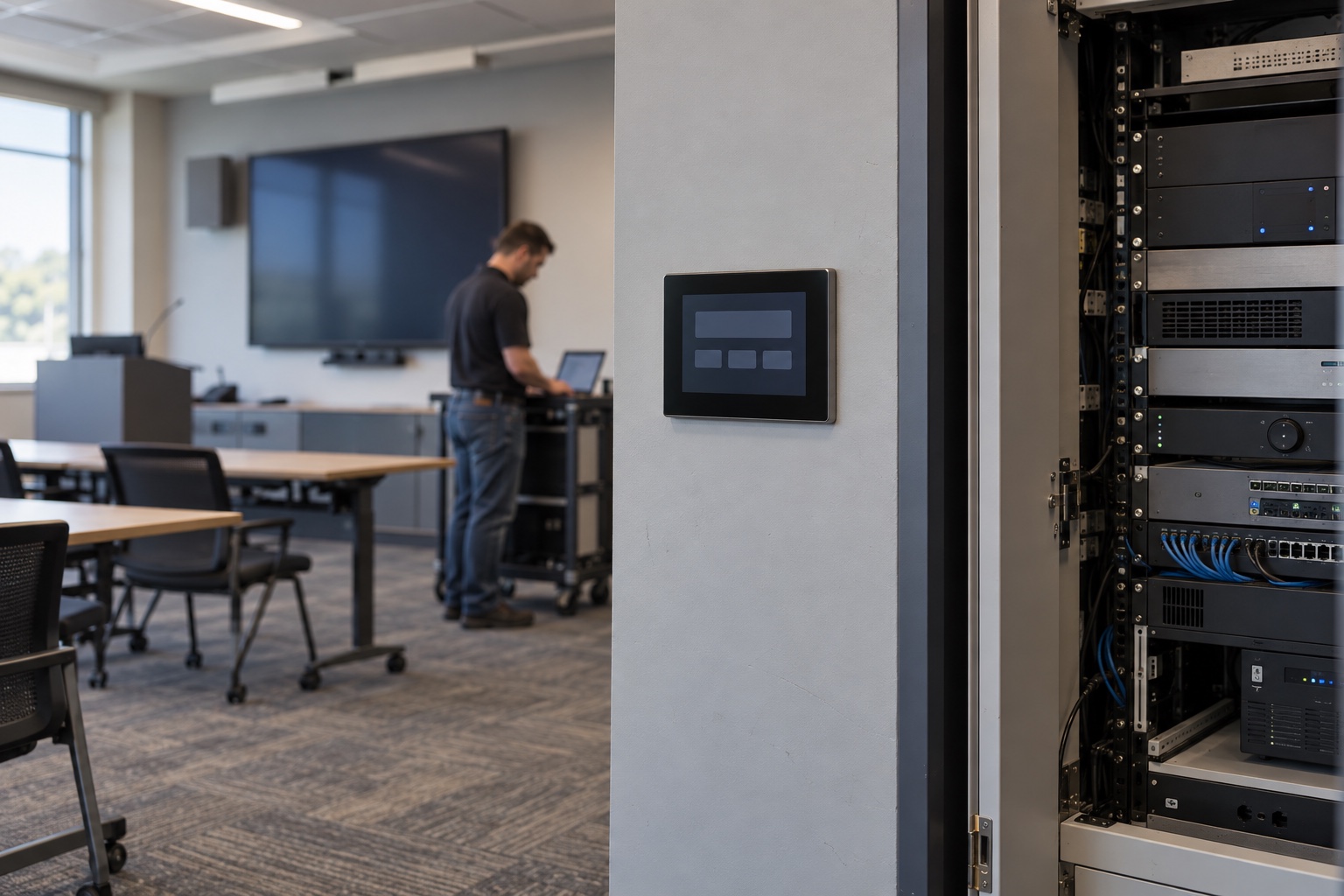
A room-control upgrade can look successful from the equipment rack while leaving the person at the touch panel unable to start a meeting. The Core may be online, yet a plugin, support laptop or connected device still needs attention.
Before a Q-SYS 10.5 upgrade, inventory the dependencies around the design, confirm that the people supporting it have compatible tools, and define how you will test the room afterward. Schedule the maintenance window only after you know what must change together.
Q-SYS Designer Software 10.5.0 was released September 29, 2026. The release notes identify changes that can affect preparation, including the move to .NET 10 and support for V3 encrypted plugins. Those plugins require Q-SYS 10.5 or newer. A version number on the Core is therefore only one part of the compatibility review.
Write down the reason for the upgrade
Start with the result you need: support for a new device, a specific feature, an applicable fix or a planned software standard. Tie that reason to the rooms and equipment involved. This helps the change owner judge whether the benefit justifies the timing and what evidence will establish success.
Read the release notes and the current 10.5 known-issues page against the actual inventory. A known issue involving a particular Core, touchscreen, USB workflow or control feature may matter greatly in one room and have no bearing on another. Check again shortly before the maintenance window; support guidance can change after release.
For a campus with several room types, select a representative pilot that includes the dependencies you need to validate. The simplest room may be useful for the first installation, but passing it does not clear a divisible training space with third-party control and conferencing integrations.
Build the dependency list around user actions
Begin with the current design file and walk through what the room does. “Start meeting” might involve a touchscreen, a control script, a display command, audio routing and a conferencing device. Identify each dependency rather than treating the button as a single function.
| Dependency | Record | Question to resolve |
|---|---|---|
| Core and peripherals | Exact models, firmware and connections | Are they supported in the proposed combination? |
| Design and control logic | Working file, version, custom scripts and UCI assets | Does the design load and behave correctly in the target environment? |
| Plugins | Name, version, supplier and licensing requirements | Which versions are compatible, and where are installers or packages kept? |
| External systems | Displays, conferencing devices, lighting and other integrations | Do control commands, authentication and feedback still work? |
| Support computers | Operating system, Designer version and required components | Can an authorized technician service the upgraded room? |
| Network and access | Required services, certificates, accounts and support paths | Will the existing approved access support the change and recovery? |
Keep passwords, keys and other secrets in the approved credential system rather than in a broadly shared spreadsheet. The worksheet should identify the owner and authorized retrieval process.
Prepare the support laptop before entering the room
A technician discovering a missing software component during a short maintenance window is an avoidable delay. Q-SYS lists the current operating-system and installation prerequisites on its software requirements page, including .NET 10 and the Microsoft Visual C++ Redistributable. Check the complete requirements for the exact installer you will use.
Install and open the software on the support computer in advance under your organization’s software-management process. Verify the technician’s permissions and network access. If the service laptop is restricted from downloading prerequisites, arrange the approved installation path ahead of time.
Include the backup technician or support provider. A successful change should leave the room supportable after the project engineer leaves. Record the required tool version in the support instructions, and confirm how older rooms will be serviced if the estate temporarily contains multiple versions.
Make recovery practical
Save the known working design, document the running versions and collect the configuration material needed to rebuild the installation. Check that the files are readable and accessible to the people who would respond after hours. A backup on one person’s laptop is a weak recovery plan.
Version 10.5 introduces Core Manager backup and restore functionality described in the release notes. Review its scope and prerequisites before relying on it. Keep the pre-change files and recovery information appropriate to the version you are starting from; a new feature should not be your only preparation for reaching that version.
Ask the system’s support owner to establish the supported recovery procedure for the specific design and hardware. Do not assume a design saved in a newer release can simply be reopened in an older one, or that firmware can be moved backward without restrictions. Document any one-way changes before approval.
Set a decision time for stopping the change. For example, if essential teaching or meeting functions are still unavailable at the agreed checkpoint, the change owner follows the approved recovery plan or declares the room unavailable. The exact timing depends on the room’s schedule and the work required to recover it.
Use a pilot to prove the dependencies
Where a test environment is available, open a copy of the design and review warnings, plugins and relevant control logic before changing production equipment. Software inspection cannot validate every physical connection, so follow it with a controlled room pilot.
Record the pre-change behavior first. A short video or checklist showing the normal start-up sequence can help distinguish a new fault from an existing one, provided no sensitive meeting content is captured.
Upgrade according to the manufacturer’s documented process and your change plan. Keep unrelated network, account and display changes out of the same window when practical. If several dependencies must change together, record their order and the reason so troubleshooting does not become guesswork.
Test the room from the touch panel
Verify the functions people rely on: start and end a meeting, select each presentation source, adjust volume, mute and unmute, join a call, share content, and return the room to its expected idle state. Include any lighting, partition, camera or scheduling integration that belongs to the design.
Check feedback as well as commands. A display may turn on while the touch panel still shows it as off. A volume control may move on screen without changing the sound. Those mismatches can cause repeated button presses and unnecessary support calls.
Include a controlled restart and an ordinary cold start where the maintenance plan allows them. Confirm that the room recovers without an engineer manually restoring connections. For rooms with remote support, have the help desk connect through its normal approved path and demonstrate a basic diagnostic task.
Our AV acceptance-testing guide provides a broader way to organize that evidence. Keep the Q-SYS upgrade results with the room’s support record and note any limitations that remain.
Close the change with usable records
Update the design archive, version inventory, support instructions and recovery notes to match the final state. Record who tested the room and which workflows passed. Tell the room owner about any visible change to the controls before the next scheduled session.
VIcom can help review the dependencies and acceptance plan for your AV control systems. The useful starting materials are the current design, equipment list, plugin inventory and the reason for the upgrade. Those let the conversation focus on the rooms you operate rather than a generic software checklist.
Connect with VIcom by filling out the form below.