
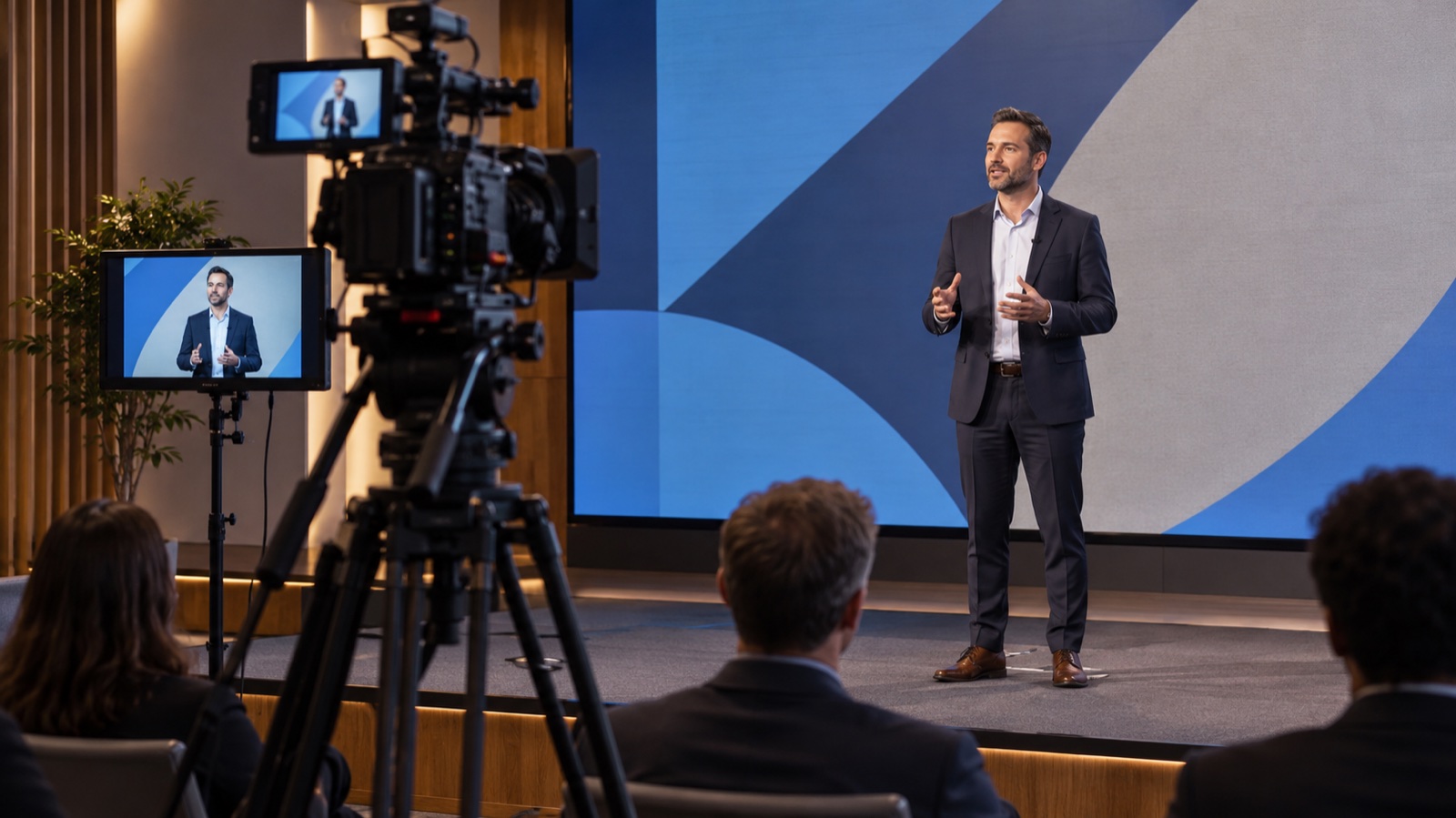
The LED wall looks clean from the seats. On the livestream, a pattern moves across the background behind the speaker. Buying teams can miss that difference when they approve a display from the showroom floor and leave the production camera at the office.
An LED wall camera test belongs in the purchasing process whenever the wall will appear in recorded or streamed video. Bring the planned shots, representative equipment and the person who approves the finished picture. Evaluate what the audience will receive through the production workflow.
Write the shot list before choosing the wall
Mark the intended camera positions on a room plan. Include the wide view, podium or presenter medium shot, close-up and any alternate angle used for discussion. Record the likely lens range, presenter position and distance between the presenter and wall. Consider seated panelists as well as a standing speaker.
Specify what the wall must do in each shot. A background image can tolerate different treatment from a display carrying small text that viewers must read. If the room needs both uses, test both and identify which shots require readable content.
Keep in-room viewing requirements on the same brief. A camera adjustment that improves the background may make presentation detail less useful to people in the room. The buyer should know that tradeoff before approving a product or a fixed camera position.
VIcom’s video-wall buyer guide provides broader display-selection context. The camera demonstration adds evidence about the proposed production use.
Bring a representative production package
Use the actual camera and lens combinations where practical. Include the sensor mode, output resolution, frame rates and shutter settings your team expects to use. Bring the relevant switcher, capture and encoding path, or document which parts the demonstration substitutes.
Ask the display supplier to identify the exact LED model, pixel pitch, processor, configuration and software or firmware used. Save the configuration with the results. Product-family names can cover different hardware and processing combinations.
Planar’s CarbonLight CLI documentation includes a specialized CLI VX brochure for on-camera applications. That example shows why the exact product configuration matters. Ask the supplier to confirm current availability and specifications for the quoted model. A product’s broadcast positioning cannot establish the result for every camera package.
If you use a substitute camera, label the results as provisional for the untested equipment. A phone clip can document the event, but it gives limited evidence about a production camera with a different sensor, lens and exposure setup.
Use content that exposes the problems you care about
Bring fine patterns, gradients, small text, brand colors and representative moving graphics. Include light and dark backgrounds. Have a real person stand in the planned position so the operator can evaluate skin appearance and exposure balance alongside the wall.
Observe the artifacts separately. Moire can appear as false patterns caused by the interaction of repeating structures. Banding and flicker involve timing and exposure behavior. Poor text reproduction, clipped highlights and color differences deserve their own entries rather than being grouped under a vague “camera issue.”
ARRI’s virtual-production FAQ identifies camera, display, lens, filtering, aperture and focus among the variables affecting moire, and urges users to test their setup. That is a useful reason to examine the planned shooting range instead of accepting one clean frame as approval.
Ask the technical team to change one variable at a time when investigating an artifact. Record the result before moving on. Brompton’s LED-on-camera guidance discusses several tools and adjustments; no single refresh-rate or pixel-pitch specification establishes that every shot will be clean.
Review the recorded and streamed picture
Capture representative clips through the intended output chain and review them at the delivered resolution. Check the actual streamed result where practical, using the planned platform and encoding settings. A camera preview may look different from the compressed picture viewers receive.
Repeat the planned framing changes and normal camera movement. A background that appears acceptable in the wide shot may show a problem at another focal length or angle. Include the expected brightness range and lighting states, rather than selecting a single convenient combination.
Have the camera operator explain each adjustment needed to obtain an acceptable result. If the demonstration requires a position the installed room cannot provide, leave that shot unresolved. If softening the wall improves a presenter close-up but obscures text, record the content restriction.
A shot-by-shot demonstration matrix
Use one row per required shot and content condition. Keep a reference clip for each row, with a filename that connects it to the configuration record.
| Field | Evidence to retain |
|---|---|
| Shot and geometry | Wide, medium or close-up; camera position, angle, lens range, wall distance and presenter position. |
| Camera package | Body, lens, sensor mode, aperture, focus, frame rate, shutter and output resolution. |
| LED configuration | Exact model, processor, brightness, relevant timing settings and configuration revision. |
| Content and lighting | Test file, text size, graphic type, presenter lighting and room lighting state. |
| Observed artifact | Moire, banding, flicker, detail, color or exposure issue; clip reference and observation. |
| Delivered output | Recording and stream settings, review display, result and named approver. |
| Remedy and limits | Adjustment, responsible owner, affected shots, unresolved compromise and retest requirement. |
Record what the showroom did not test
Attach a short limitations note to the matrix. List untested camera bodies, alternate lenses, unavailable distances, different room light, missing production equipment and content types the supplier could not demonstrate. Assign follow-up tests before treating those conditions as accepted.
For example, a hypothetical demo using one fixed camera and a medium presenter shot cannot approve a second camera’s close-up from a different angle. That second configuration remains an open requirement, even if the first clip looks good.
Put the accepted configuration into the project
Carry the shot list, settings, reference clips and limitations into the specification and acceptance plan. Agree who signs off on in-room viewing and who signs off on the finished video. Identify changes that require another check, such as a new camera, processor configuration or production frame rate.
Bring your shot list to a VIcom video-wall design discussion. Involving the camera operator and final video approver early gives the demonstration a clear purpose and leaves procurement with evidence tied to the room’s intended use.
Connect with VIcom by filling out the form below.