
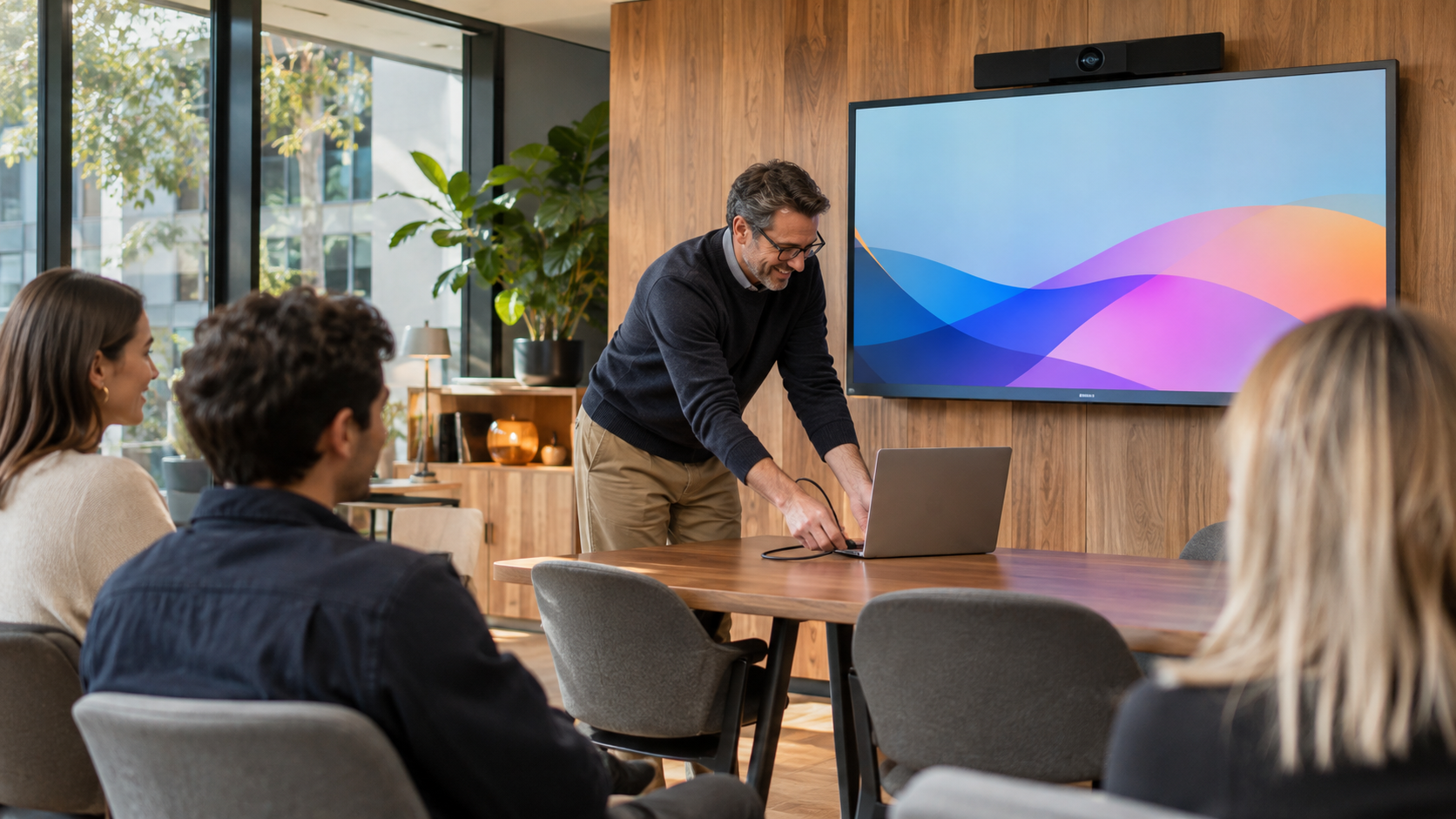
The welcome screen looks great until someone needs to present. Then the room becomes a small troubleshooting session: find the remote, choose an input, connect the laptop, and hope the welcome screen comes back when everyone leaves.
A display can serve both purposes. The important question is whether the transition works for the person using the room, including someone who has never been there before.
Decide what each display is allowed to show
Start with the space. A reservable training room has different requirements from a screen facing a clinic waiting area. Identify who can see the display and what information may appear there before choosing a switching method.
Write down three intended states: approved signage while idle, the selected presentation during a session, and an approved fallback when the usual content is unavailable. Include what the screen should do outside operating hours. A blank screen may be preferable to showing yesterday’s internal meeting.
Choose a clear handoff
Crestron’s AirMedia guidance describes digital signage between meetings that is interrupted when a presentation begins. That is a useful starting point for a shared display design. It does not establish exactly how every installed model, signage integration, or room program will behave.
For your room, decide what starts a presentation. Is it connecting a cable, beginning a wireless share, or selecting a button on the controller? Then decide what ends it. Closing a laptop lid, ending a share, and disconnecting a cable are different events. Test each one that your users will reasonably expect to work.
Source priority matters too. If a cable remains plugged into a dock, should that prevent a wireless presenter from taking over? If two people connect, who decides which source appears? Make that behavior intentional and visible.
Test the return trip
Run a short acceptance session using a normal employee laptop and the actual signage feed. Ask someone outside the installation team to perform these tasks:
- Enter while signage is playing and start a presentation.
- Hand the display to a second presenter using the other approved connection method.
- End sharing normally, then repeat by disconnecting unexpectedly.
- Leave a connected laptop idle and observe the agreed timeout behavior.
- Restart the room equipment and confirm that the intended idle content returns.
Record what happened and how long each transition took. A screen that eventually recovers after several minutes may still be a poor fit for a room with back-to-back bookings. Agree on acceptable behavior before declaring the installation finished.
Give failures an owner
Signage, network access, and room control may belong to different teams. Document who handles stale content, failed playback, and a display stuck on the wrong input. Give reception or room support one straightforward recovery instruction that has been tested on the installed system.
Also agree on the fallback when the network or content service is unavailable. Use approved content and avoid assuming that a live feed will always load. Check that recovery does not expose an administration screen, credentials, or the previous presenter’s material.
Demonstrate your real workflow before repeating it
One successful pilot can establish the behavior for a larger rollout. Bring the laptops, signage platform, and security settings your staff actually use. Verify the complete transition, including returning the room to its idle state, before treating the design as a standard.
For the content side of the process, see our guide to keeping digital signage current. VIcom can help evaluate how your signage and presentation workflows share a display and identify the handoff tests that belong in the project scope.
Connect with VIcom by filling out the form below.