
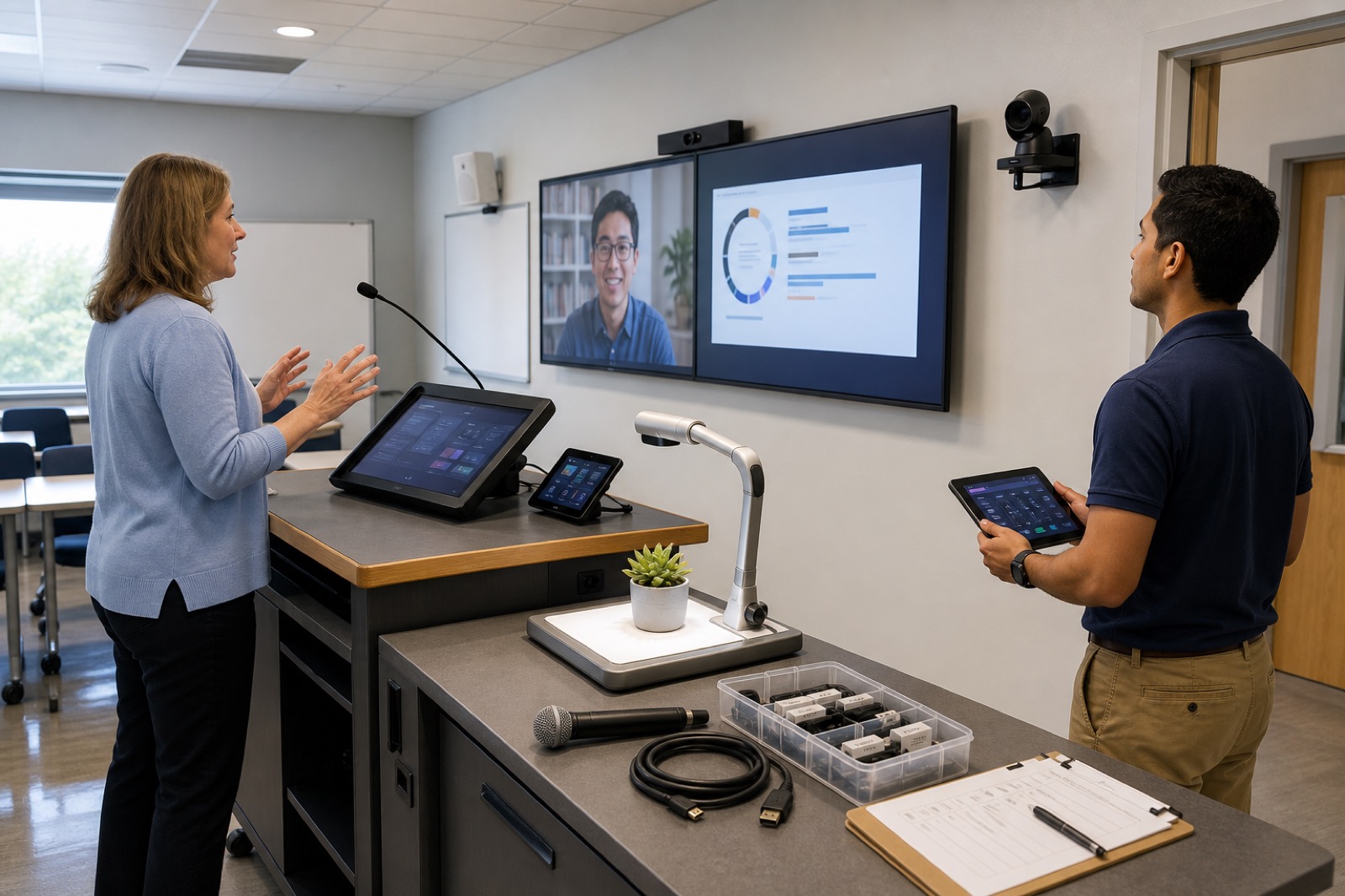
The display turns on. The control panel responds. Monitoring shows the room is online. Then the professor walks in, plugs in a laptop, cannot find the document camera, cannot hear the remote guest, and does not know who to call for help.
An equipment check shows that the gear works. A classroom drill shows whether a class can start on time.
Run the drill before faculty return. Use the same devices, accounts, network rules, course material, and support process that faculty will use. Find problems while there is still time to fix them, document them, or warn people about them.
Select representative room types
Group rooms by how people teach in them: lecture halls, active learning rooms, labs, HyFlex rooms, seminar rooms, auditoriums, and specialty spaces. Include both older rooms and newly upgraded ones.
List what each room type should do. Do not treat every feature as essential. Focus on the tasks faculty use every day and the services the school has promised to provide.
Drill the first five minutes
Start with the room exactly as a professor finds it.
- Wake or power on the room.
- Sign in, or use the room without extra logins.
- Choose the right source.
- Connect a managed Windows laptop, a Mac, and the adapter path most people use.
- Show content and play audio.
- Set the volume and check the microphones.
- Return the room to its normal starting state.
Time each step and count how many choices the user must make. If a trained tester pauses, a busy professor probably will too.
Rehearse common teaching tasks
Teaching moves from one task to the next. Switch between slides, a web page, a document camera, a student device, video, annotation, and a remote guest. Check what appears on every display and in every recording or remote feed.
Play protected media only through approved methods. Test wireless sharing under normal network rules with a full classroom load. Keep a wired backup ready.
Test lecture capture and hybrid teaching
If the room records lectures, check scheduling, manual recording, microphone inputs, camera framing, shared content, privacy indicators, pause and stop controls, and publishing. Use test accounts and sample content.
For hybrid classes, place a remote tester on a normal internet connection. Can they hear the professor and student questions? Can the class hear the remote speaker? Do captions work well enough to follow the lesson? Can a student share content without exposing personal notifications?
Work with the campus teams responsible for accessibility. Test captions, assistive listening, control access, sightlines, and other accommodations under real conditions.
Practice common failures
Unplug and reconnect the laptop. Let wireless sharing fail. Start with a flat microphone battery. Join with the wrong account. Restart the room. Drop the remote guest.
Make sure users can recover on their own or reach help without losing the class.
Write fallback steps in plain language. Faculty should not have to troubleshoot AV systems. A good fallback keeps the lesson moving.
Test classroom support
Place a real support request with the room name and the published contact method. Measure how long it takes to receive a response, diagnose the issue, dispatch help, and solve the problem. Check that monitoring points to the right room and that the technician has current drawings, settings, and known issues.
Review support after hours and for adjunct faculty. Make sure room signs and quick-start guides use the same room names and never expose passwords or other sensitive information.
Include faculty
Invite faculty with different teaching styles, skill levels, and accessibility needs. Ask them to teach a short lesson with real course material. Watch without stepping in unless they ask for help.
Note where they stop, which labels confuse them, which changes feel risky, and which features they actually use. Fix the problems that come up again and again.
Turn results into action
Sort each issue into one of these groups:
- Fix before opening.
- Share a tested workaround.
- Remove or disable an unreliable feature.
- Schedule it for a later upgrade.
- Raise it as an accessibility, safety, security, or service risk.
Test every fix again. Update quick-start guides, help desk scripts, monitoring, spare equipment, and training. Tell faculty and department leaders about known limits before classes begin.
Make drills routine
Run a shorter drill after major changes to the network, control system, or lecture capture platform, and before each new term. Use support tickets to improve future drills. Track startup time, sharing success, audio quality, recording success, hybrid performance, recovery time, and support response for each room type.
Virginia’s Digital Learning professional development resources support ongoing staff training. Whether you work in K-12 or higher education, people need rooms that work well and practice using them.
VIcom helps schools review classroom workflows, standardize systems, run readiness drills, train faculty and staff, monitor rooms, and support opening week. Success means faculty can walk in and teach without delay.
Create an opening-week plan
Use what you learned during the drills to place technicians, loaner gear, charged microphone batteries, adapters, and troubleshooting guides where they are most likely to help. Set support hours, dispatch priorities, escalation contacts, and communication plans. Make sure room names match across signs, schedules, monitoring, and support tickets.
Rank issues by how much they affect teaching. A room with no audio, an inaccessible required feature, or a room that will not start matters more than a cosmetic display problem. Give support teams the authority to move a class or use a tested fallback when a repair would take too long.
Hold a short review each day during opening week. Group incidents by room type, hardware, software version, network segment, and user task. Repeated issues often point to a shared setup or training problem that you can fix across many rooms.
At the end of the week, update the drill with what you learned so the next readiness check starts from real experience rather than old assumptions.
Connect with VIcom by filling out the form below.