
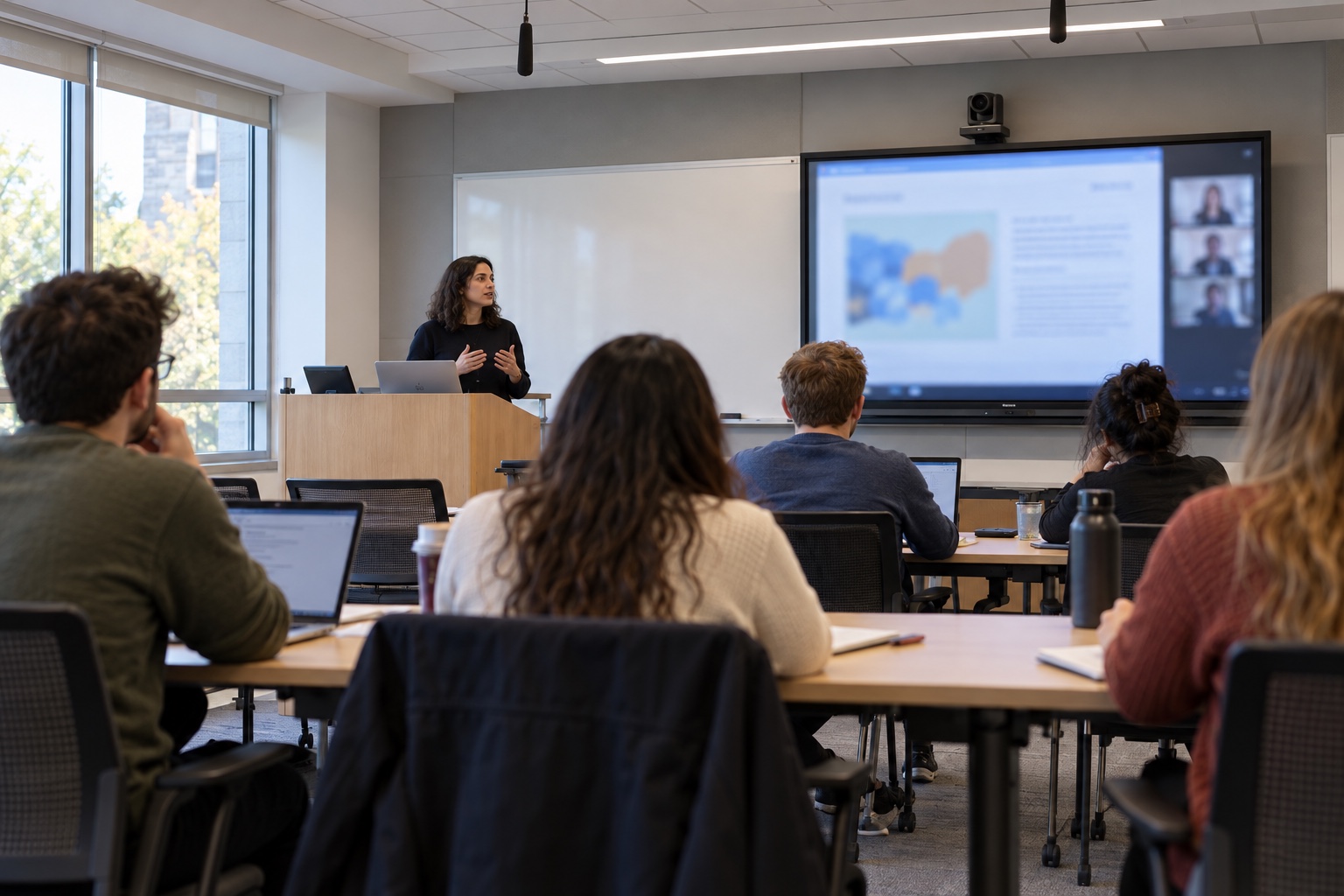
A successful Zoom Classroom pilot should follow a course through a normal teaching week: an instructor schedules a session, students find it in the learning management system, the classroom connects, and the right people can access the recording afterward. A clean video call demonstrates only part of that process.
Zoom announced U.S. general availability of Zoom Classroom on September 29, 2026, describing a new LTI 1.3 application that brings teaching workflows into the LMS. Its higher-education announcement also covers Zoom Video Management 2.0. Treat those as specific products and capabilities to verify in your proposal. An announcement covering several products does not establish which features your institution has licensed.
For a campus considering adoption, the useful question is whether the proposed setup makes a real course easier to teach and support. Start with a small pilot that includes the LMS team, instructional technology, classroom AV, accessibility staff and the people who answer faculty support calls.
Choose a course that will expose the awkward parts
A friendly demonstration with an administrator account will miss many ordinary problems. Select a representative course with recurring meetings, student participation, at least one recording workflow and a classroom that reflects the campus inventory. Include an instructor who will use the system without a technician sitting beside them.
Write down the current process before changing it. Where does the instructor create the meeting? How do students find the link? Who changes a recurring session? How long does it take to make a recording available? These observations give the pilot something useful to improve.
Keep the first pilot bounded. One course can reveal a great deal, but it cannot establish that every lab, auditorium, instructional format and accommodation has been covered. List the additional environments that would need testing before expansion.
Confirm the exact application, LMS version, tenant, license and rollout availability with your Zoom and LMS contacts. If the institution already uses a Zoom integration, document how the proposed Classroom application relates to it. Existing integration settings and permissions should not be assumed to carry over unchanged.
Use the accounts that will actually teach and attend
Run the pilot with approved test accounts representing an instructor, student, teaching assistant and support technician. Add any role your institution depends on, such as an instructional designer or guest lecturer. An administrator should be available to investigate, but the administrator account should not stand in for everyone else.
Check what each role can see and do from inside the LMS. Students should find the correct session without being sent through several unrelated links. Instructors should understand where scheduling and recording controls live. Support staff need a way to diagnose an issue without receiving unnecessary access to course content.
Include an enrollment change. Add a test student, remove one, and verify access according to the institution’s policies and the integration’s documented behavior. Try a copied course shell. Old meeting links and inherited recording permissions can be easy to overlook when a pilot uses only a brand-new course.
Test the course in the order people use it
| Task | Test condition | Evidence to keep |
|---|---|---|
| Schedule and change a class | Create a recurring session, change one occurrence and cancel another | Where the change appears for the instructor and student |
| Join from the LMS | Use ordinary student and instructor accounts on supported devices | Sign-in steps, permissions and any confusing duplicate links |
| Teach from a classroom | Share content, speak from normal teaching positions and take a remote question | What remote and in-room participants can hear and read |
| Make a recording available | Complete the institution’s review and release process | Processing, access, captions and the student’s navigation path |
| Handle a course change | Change enrollment, copy the course or replace an instructor | Which settings persist and which require attention |
| Get help | Report a realistic joining or audio problem | The support route, information collected and recovery steps |
Record the result and the person responsible for any follow-up. “Works” is too vague when an instructor can join but a student must use an administrator-supplied workaround. Keep screenshots free of student records and use the institution’s approved location for support evidence.
Put someone at the far end of the call
The LMS team can verify that a session opens. The AV team needs to verify that students can participate once it does.
Have a remote participant listen while the instructor faces the board, walks to a demonstration area and takes a question from the back of the room. Check whether the camera shows the material being discussed. Share an actual slide, spreadsheet or document at the sizes used in that course. A full-screen logo is a poor test of text readability.
Ask someone in the last row to read shared content and hear the remote student’s question. Check the instructor’s view as well: can they tell who is trying to speak, switch sources without losing the class and find the mute control quickly?
Use the same discipline described in our classroom experience drill. Test a short teaching sequence with real room controls and normal account permissions. Note every step that depends on memory, a handwritten workaround or a technician’s private knowledge.
Follow the recording all the way to the student
Decide who may record, who reviews the result, who can view it and how long it should remain available. Then test that policy. Verify access as a student in the course and as an account that should not have access. Check what happens when an instructor shares a link outside the LMS.
Ask accessibility staff to evaluate the actual playback experience, caption quality and available correction process. Include keyboard navigation and the assistive technologies the institution supports. An available caption button does not establish that a technical lecture’s terminology is accurate or that every learner can reach the recording.
Review any proposed AI features separately with the appropriate institutional owners. Establish what is enabled, what information is processed, which users can access outputs and which retention settings apply. The pilot can evaluate the core teaching workflow while those decisions are being made.
Rehearse a bad morning
Choose a few ordinary failures: a student cannot sign in, the room joins without microphone audio, or the instructor cannot find the expected recording. Have the normal help desk respond using the draft support instructions.
Agree on a teaching fallback before the exercise. Depending on the course, that might mean continuing in person, using an approved alternate device or moving asynchronous material into the LMS. Staff should know who can make that decision and how students will be told.
Record the support boundary. The LMS team, Zoom administrator, AV support and instructional technology may each own a different part of the same incident. Give the first responder a short routing guide with enough context to avoid repeatedly transferring the instructor.
Make the expansion decision from the pilot record
Before starting, agree on a few observable acceptance conditions. Examples include a student joining without an extra support step, intelligible questions from the room, a recording reaching the intended class, and a help-desk technician recovering a known problem. These are proposed campus criteria, not universal Zoom requirements.
At the end, separate configuration changes from training needs, room hardware limitations and unresolved product questions. Assign owners and retest failed tasks. Estimate the work needed per additional room or course so a successful small pilot does not become an unsupported campus rollout.
VIcom can help evaluate the classroom AV portion of that workflow, including sound, displays, cameras and room controls. Bring the course sequence and pilot findings so the room design supports how instructors actually teach.
Connect with VIcom by filling out the form below.